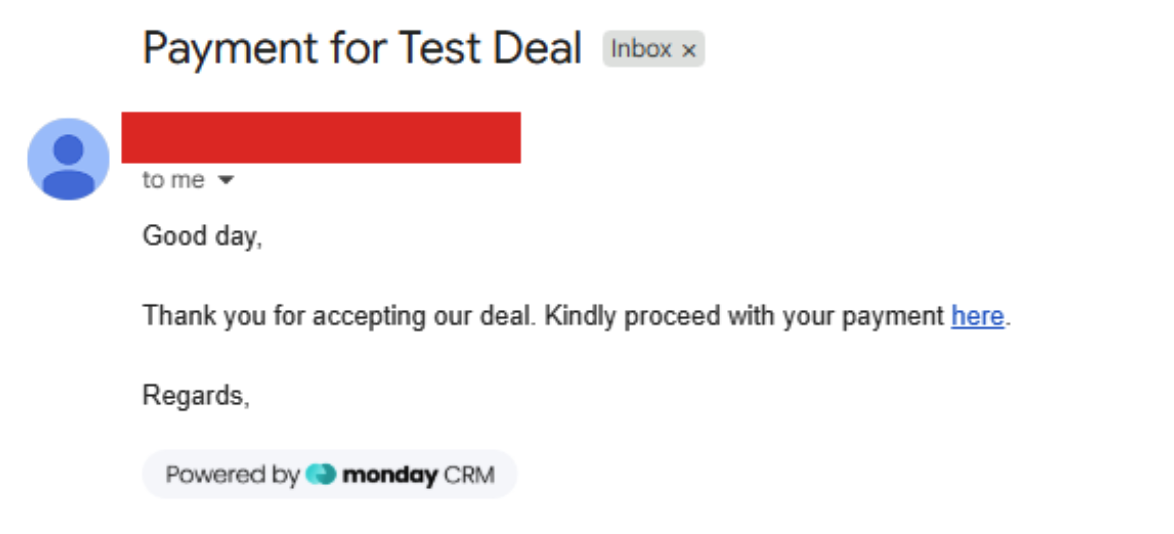
Generate a payment link using the Kulturra - Credit Card Payments automation in monday.com. You can share the link with a payer by email.
Before you begin
In your subitem settings, confirm that both of the following fields have a value:
Board ID
Payment Link column ID
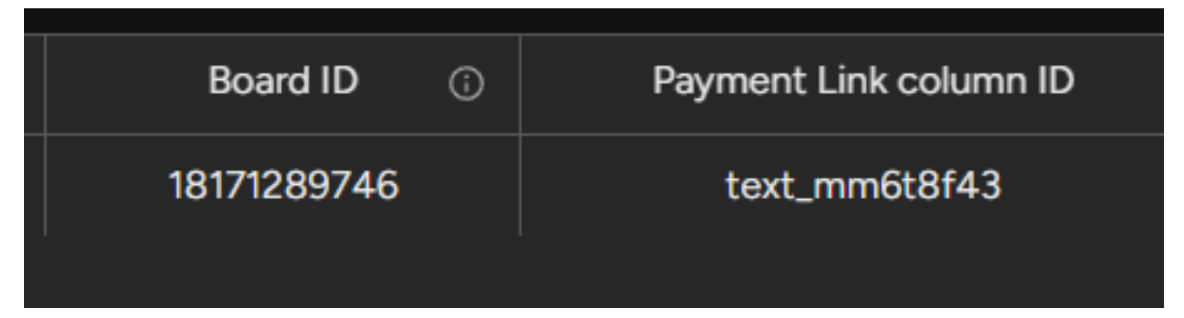
The Payment Link column ID identifies the column where the generated payment link will appear.
Steps:
To generate a payment link. Use the Kulturra - Credit Card Payments Automation block feature. Open your board and go to the Automate tab.

Click Create, then search for Kulturra - Credit Card Payments.
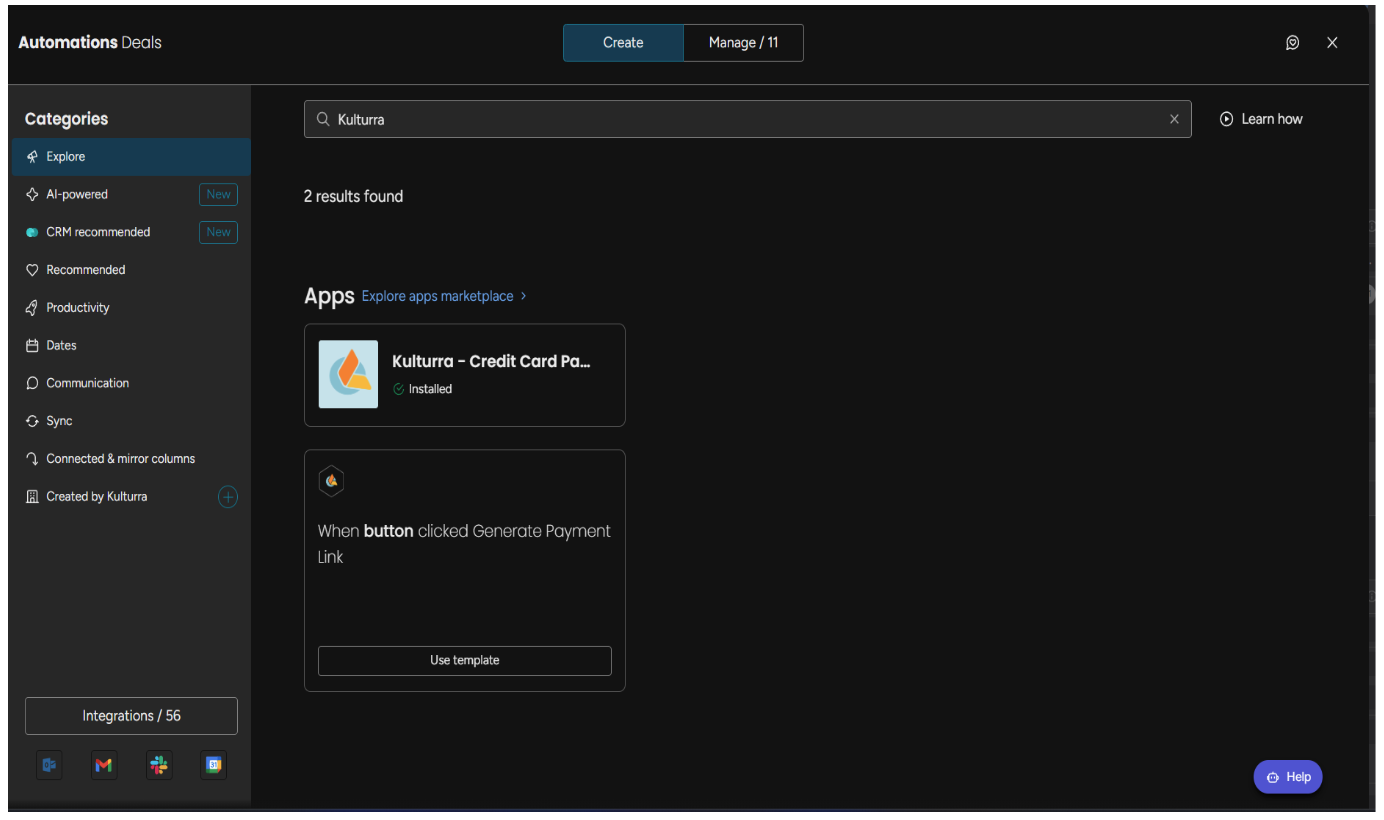
You can use the template provided or create your own trigger while using the action for this automation block.
a. When using the automation template, click use template. Either use an existing button type column for the automation trigger or create a new button type column.
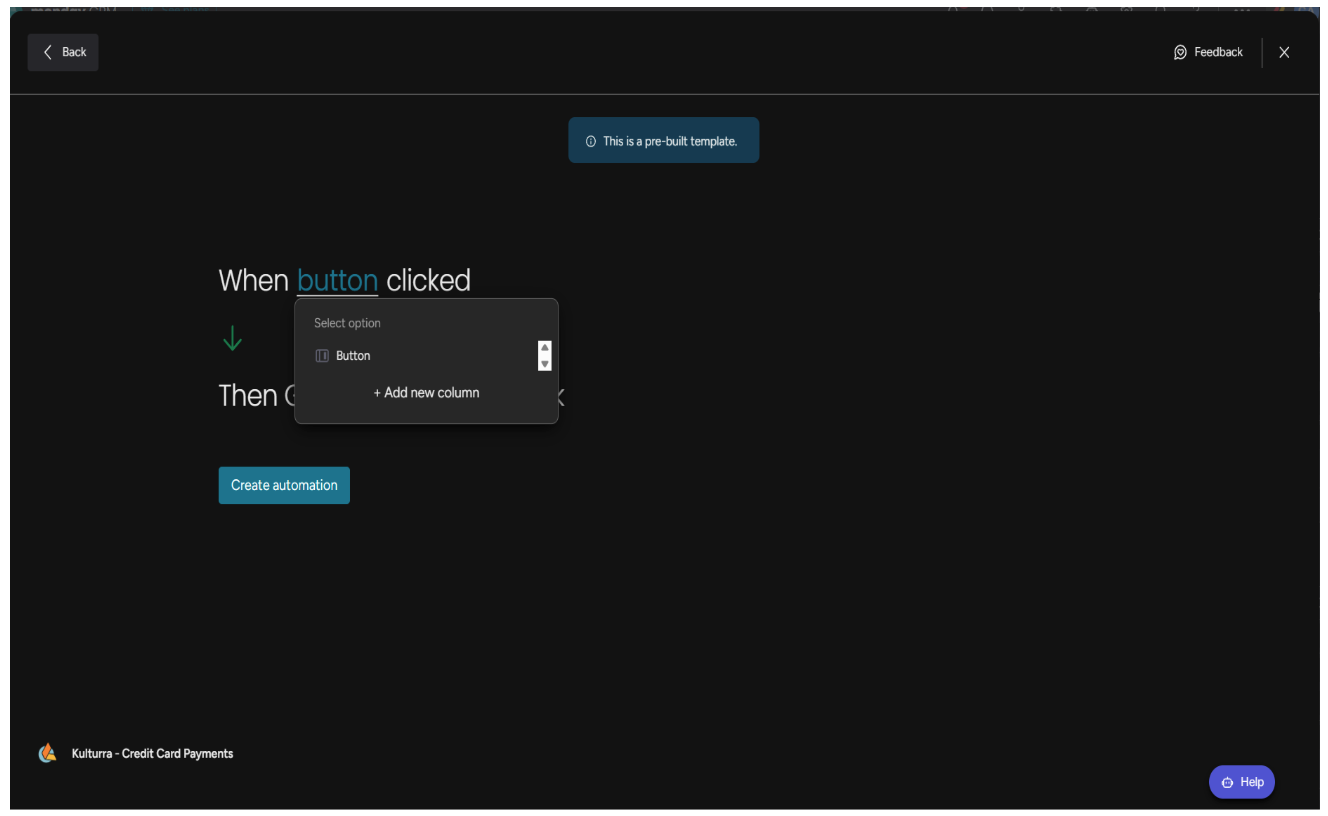
i. Click Create automation and double check in Manage tab if the automation is set properly.
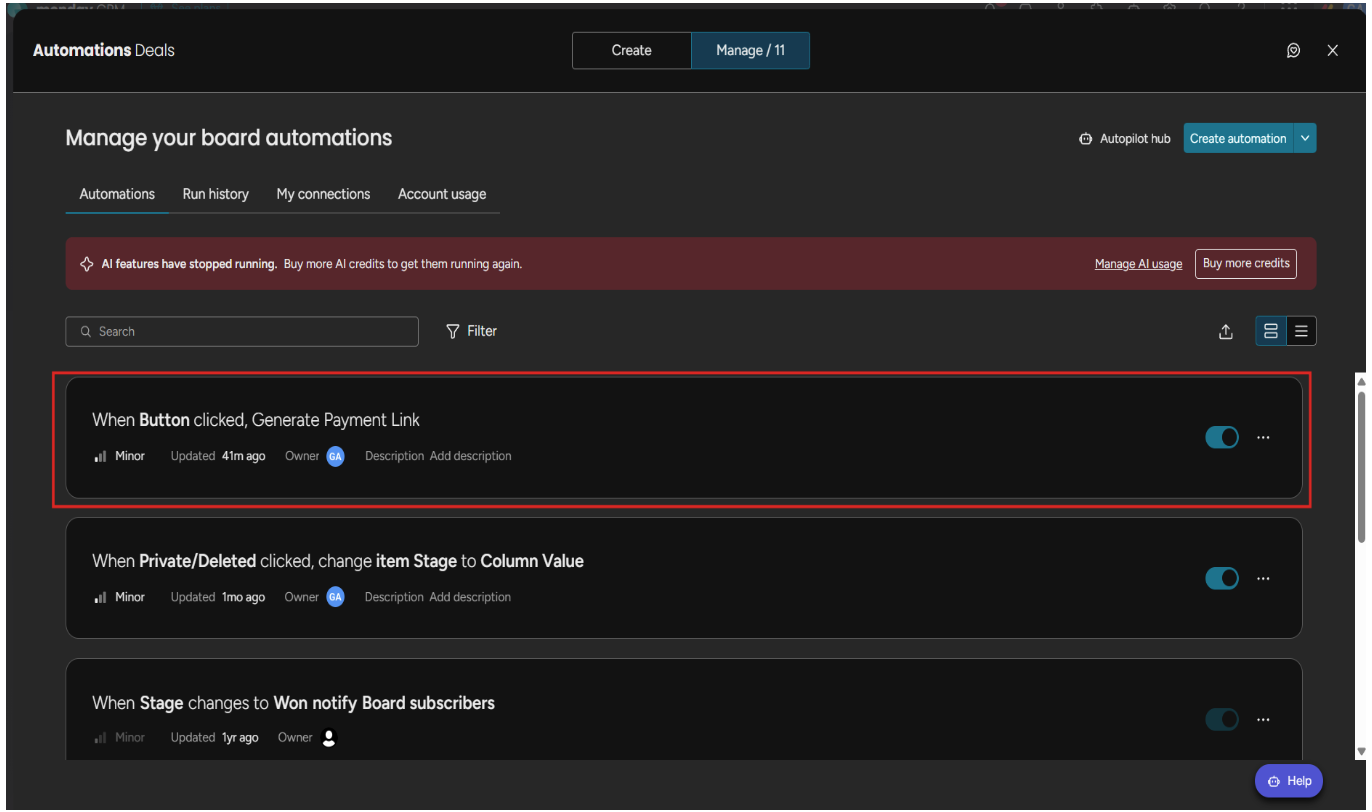
b. When creating a custom automation, Under Manage tab, click Create automation.

i. Create your own trigger condition then at the action, search for generate payment link of Kulturra - Credit Card Payments.
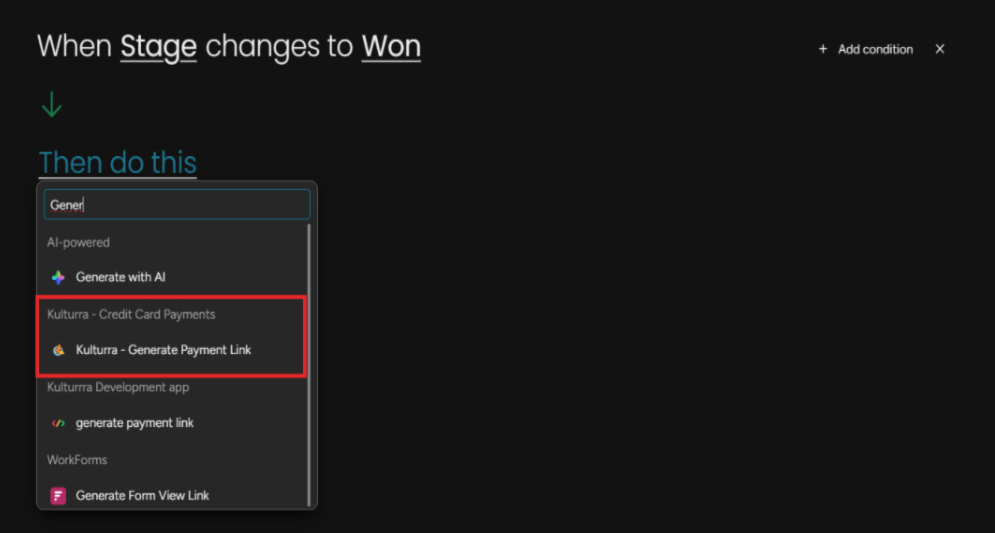
ii. Click Create automation and double check in Manage tab if the automation is set properly.
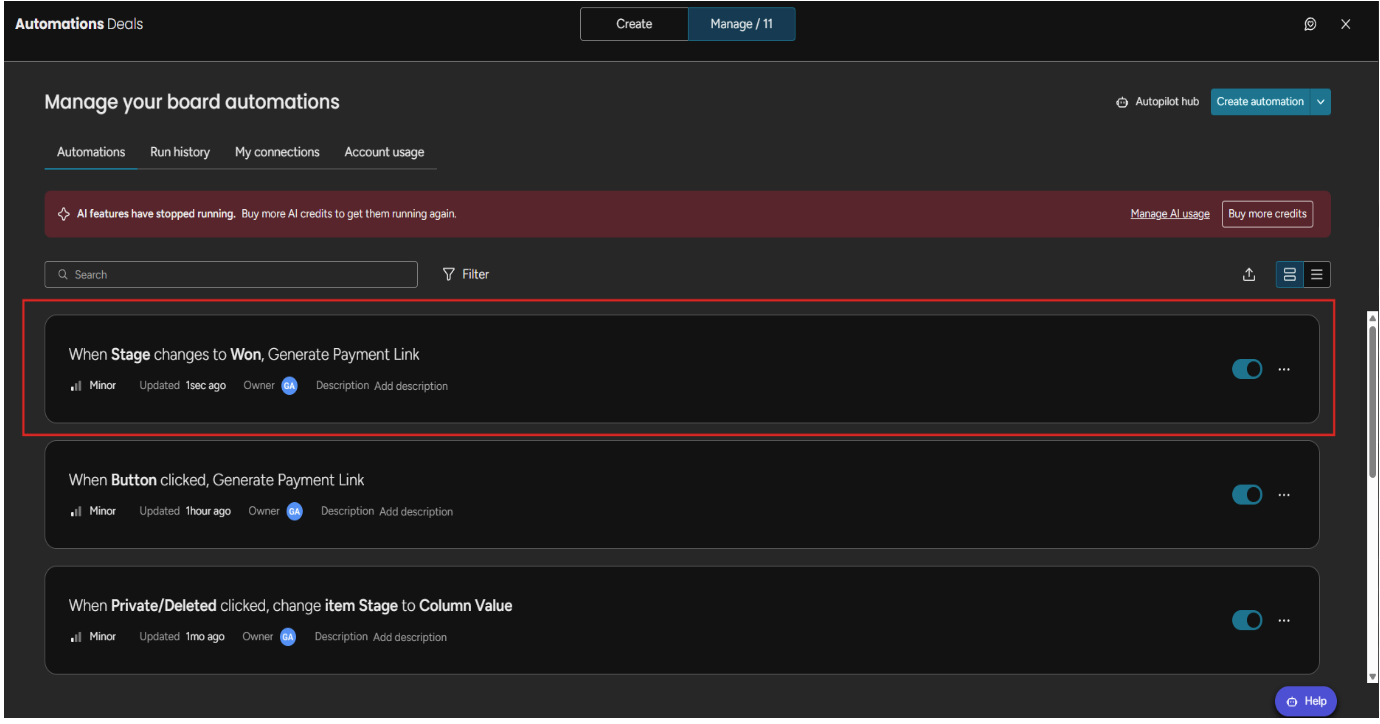
For the process indicated below, we’re going to use the automation template that triggers the generated payment link action using the button trigger.
Click a button for a specific item in the Button column to trigger the automation block.
After successfully triggering the automation block, it will set the payment link in the column that is mapped in the Payment Link column ID in subitem settings.
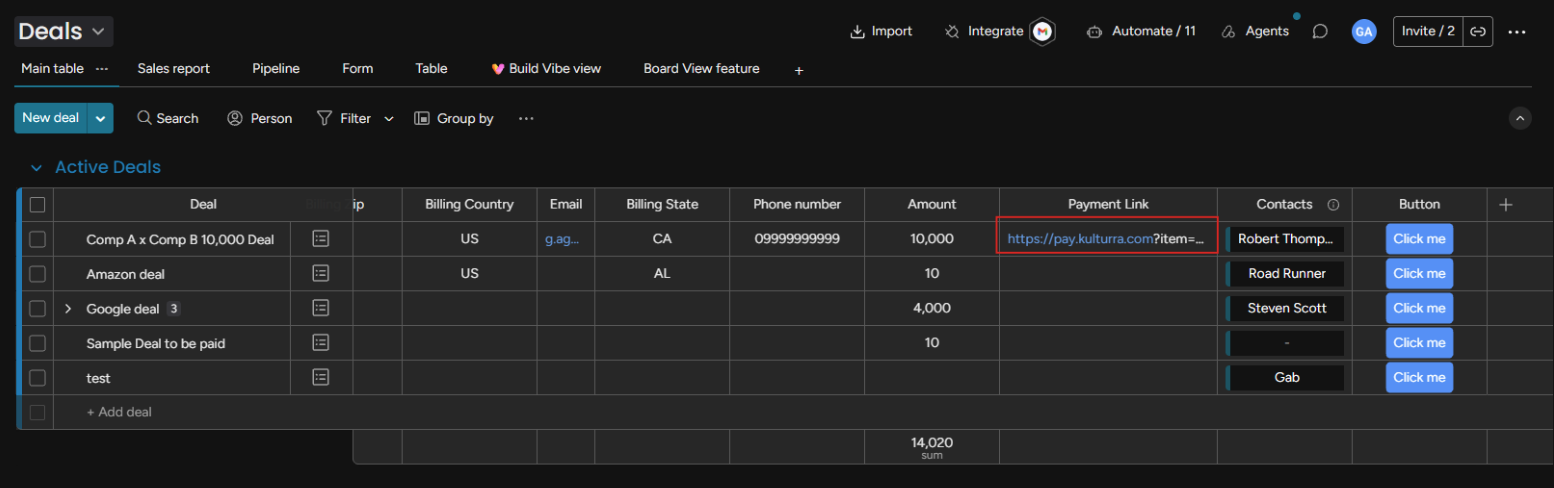
This link contains the payment form with the parameters set in the settings board and the item involved in the automation trigger. It can be used mostly for sending emails, sms or sending the link directly to the payer. Steps below is a sample ideal process of how the payment link will be used using monday.com’s Emails & Activities item view.
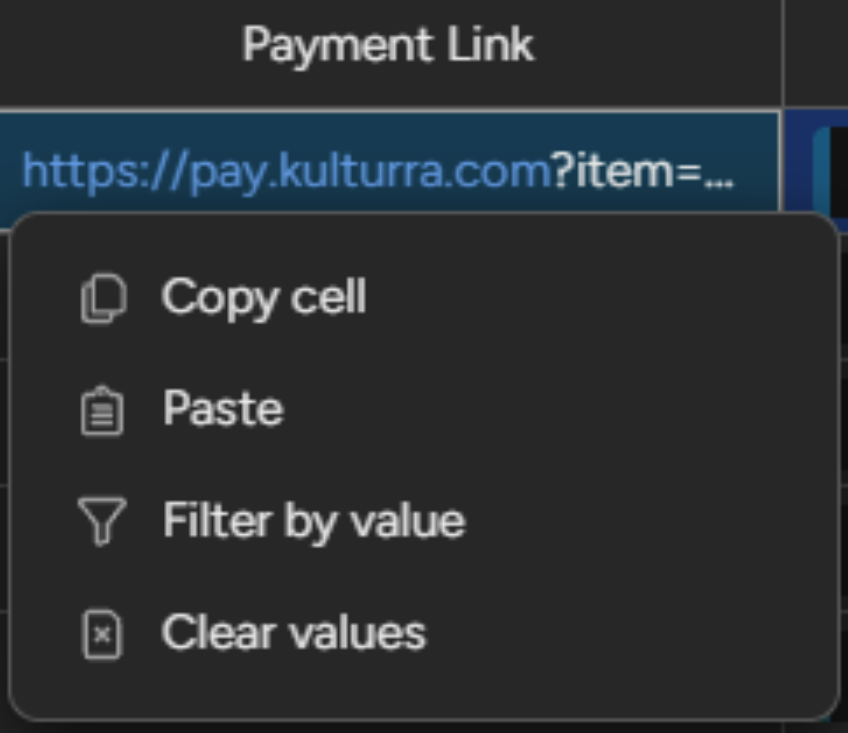
Right-click to the payment link column and click Copy cell.
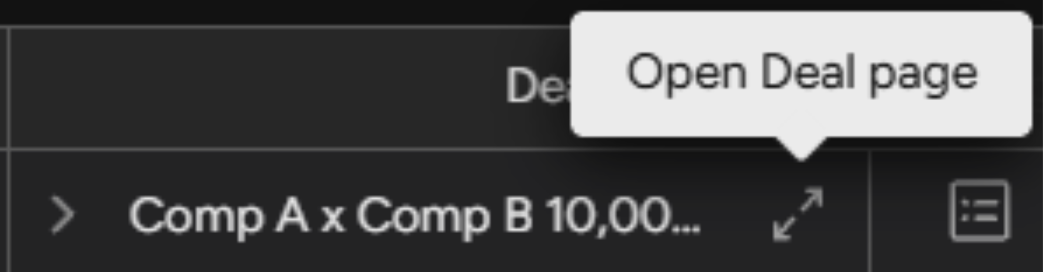
Select and open a Board item
Click the “+” icon on the further right of all Tabs -> Click Emails & Activities
Under Emails & Activities, click New email
Create an email. You can insert the payment link in the composed email.
Sample composed email with the payment link:
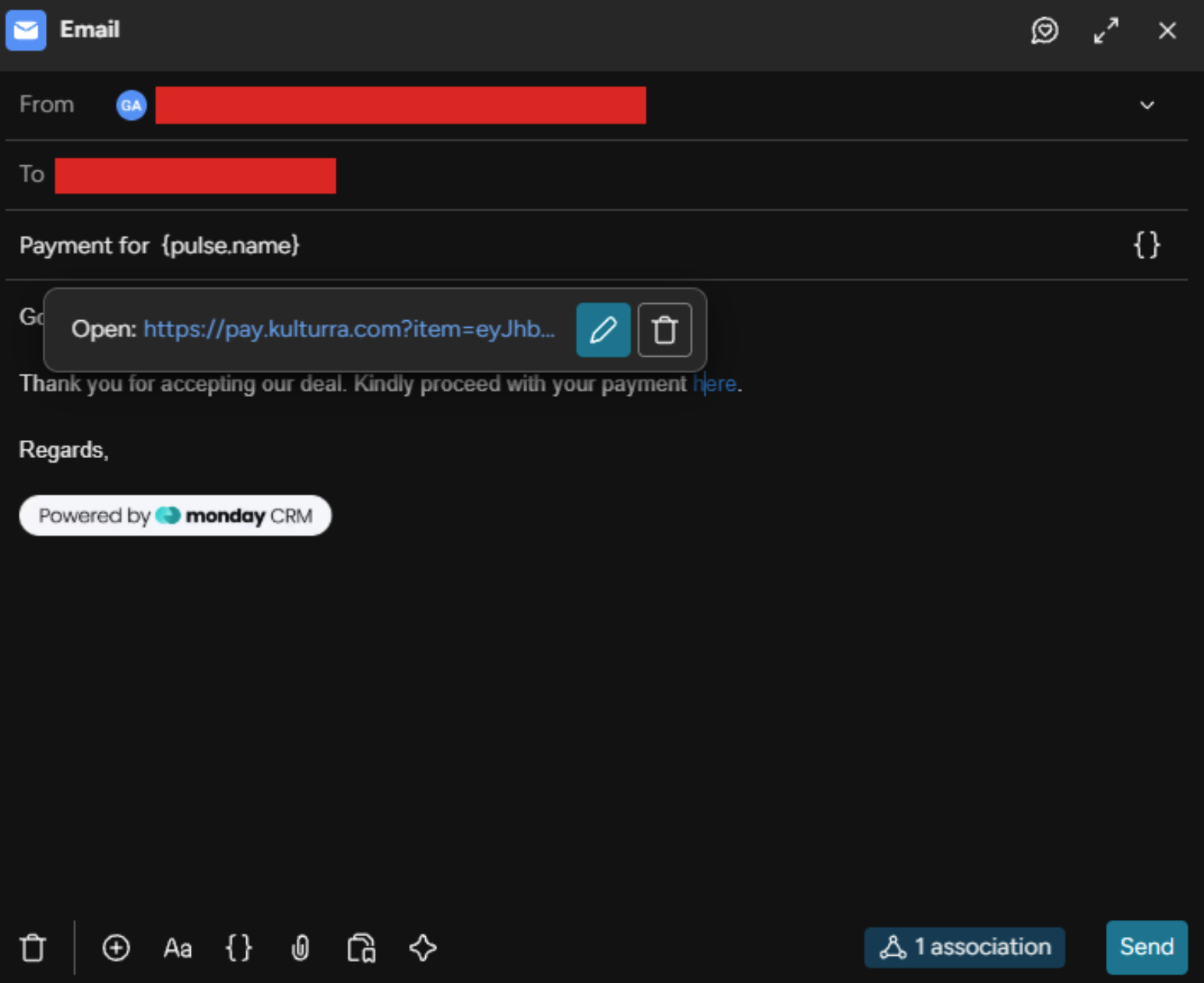
Click Send. The payer will receive the email together with the payment link.