

Overview
Commerce Hub's Hosted Checkout Solutions empower merchants to deliver secure, customizable online, digital, and mobile checkout experiences with significantly less effort than traditional API integrations. These solutions support your business branding, provide a consistent user experience, and help maximize conversion rates while keeping customer data protected.
Hosted Checkout offers flexible integration options to streamline payment collection and ensure the secure handling of PCI and PII data.
By leveraging Hosted Checkout, merchants can meet SAQ-A PCI DSS compliance requirements, simplify payment workflows, and enhance customer satisfaction, making it an ideal choice for optimizing checkout processes.
Feature and Functionality
Supported Payment Methods
Credit Card
Commerce Hub Setup
To get started, follow these steps in the Fiserv Developer Studio:
Create an account or sign in.
Create a workspace.
Generate a Merchant ID and Terminal ID (e.g., MID and TID).
Create an API Key and API Secret.
For detailed instructions, refer to the official guide: Workspaces guide
After completing these steps, you will have access to the following values:
Merchant ID
Terminal ID
API Key
API Secret
You will need all four values when configuring the Commerce Hub processor.
Be sure to save them in a convenient location; they can be found under the Credentials tab of your Dev Studio workspace.
Payment Center Settings
Adding the Commerce Hub Processor
Navigate to Payment Center Settings.
In the Payment Center Settings tab, locate Add Processors.
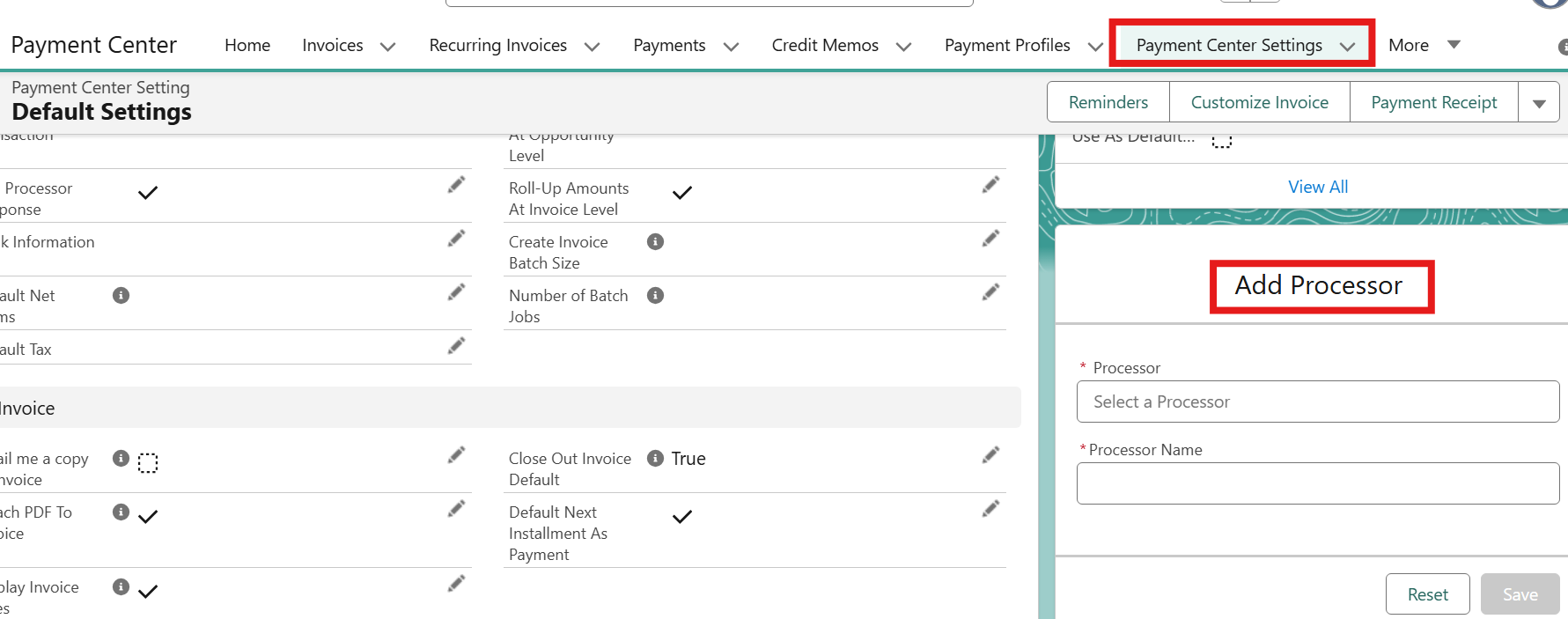
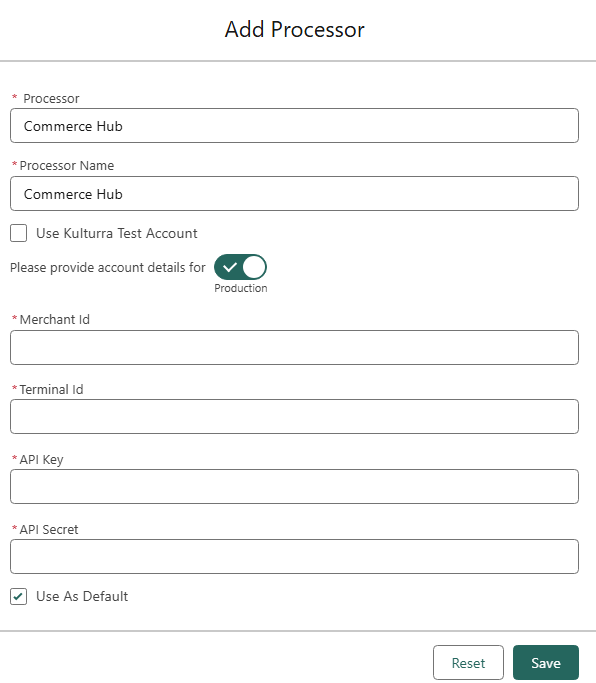
Click on the Processor dropdown list, select Commerce Hub, and enter a Processor Name.
Enter your credentials (Merchant ID, Terminal ID, API Key, and API Secret) and click Save.
Create Payment Page
Go to Fiserv Developer Studio and navigate to your Workspace | Hosted Pages.
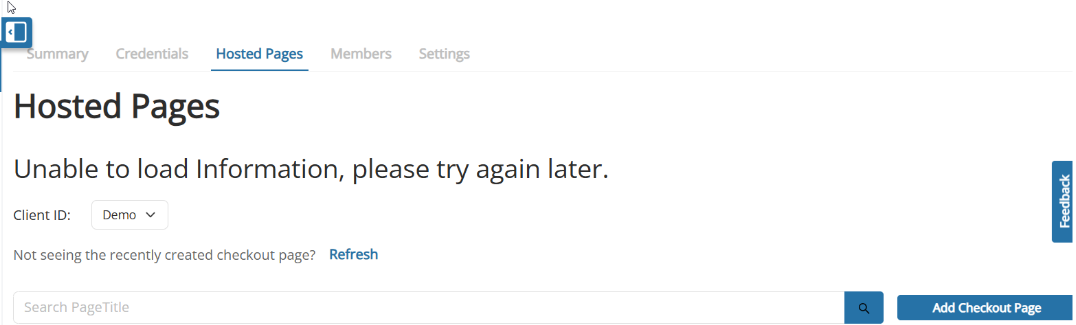
Click Add Checkout Page to create a new hosted payment page.
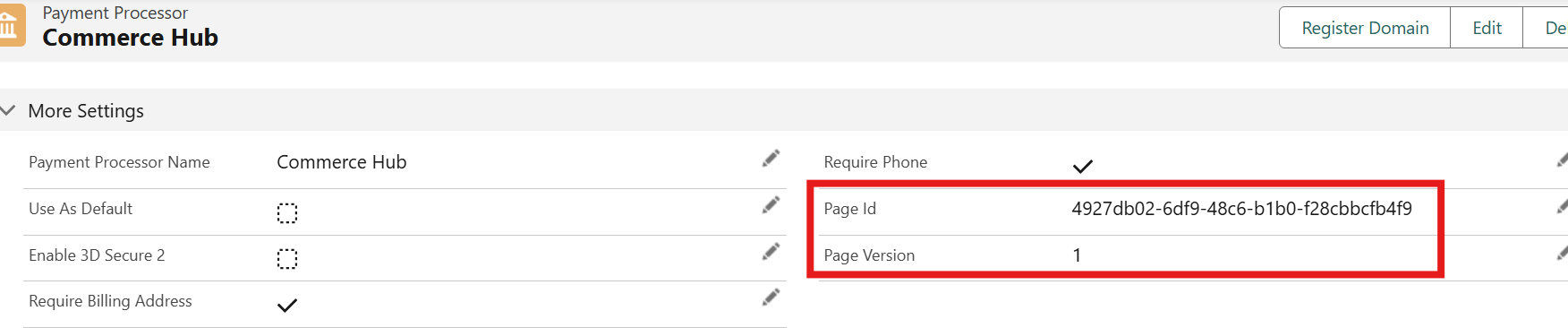
Once created, retrieve the Page ID and Page Version.
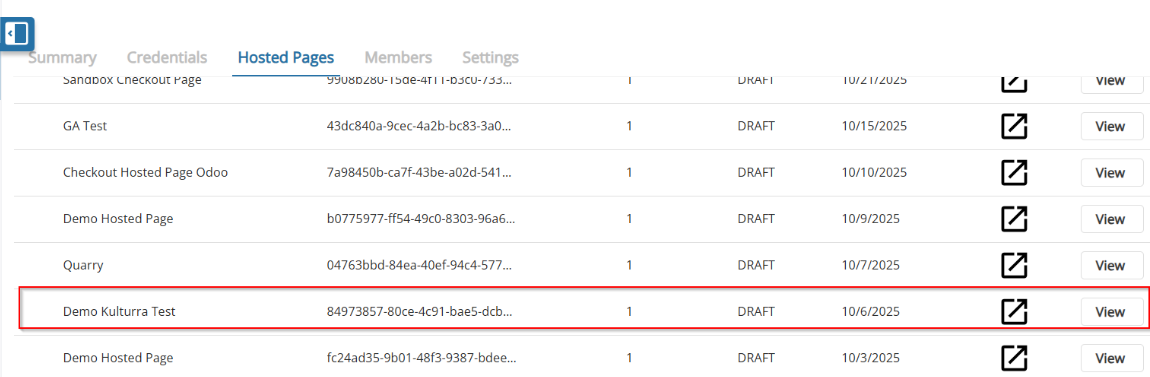
In Payment Center, open your configured Commerce Hub processor record.
Enter the Page ID and Page Version in the appropriate fields and save the record.
Availability: Winter '26