

Before you start, make sure you are on the latest versions of Apphesive:
Apphesive v8.6: https://login.salesforce.com/packaging/installPackage.apexp?p0=04t1K000002QFDT
Apphesive Extension v5.1: https://login.salesforce.com/packaging/installPackage.apexp?p0=04t5G000003rY4X
Once the upgrade is done, proceed to retrieve Class References from your QuickBooks connection and update the Credit Memo Line mapping.
Retrieve Class References from QuickBooks
To get the Class Reference:
Go to the Apphesive for QuickBooks Lightning App.
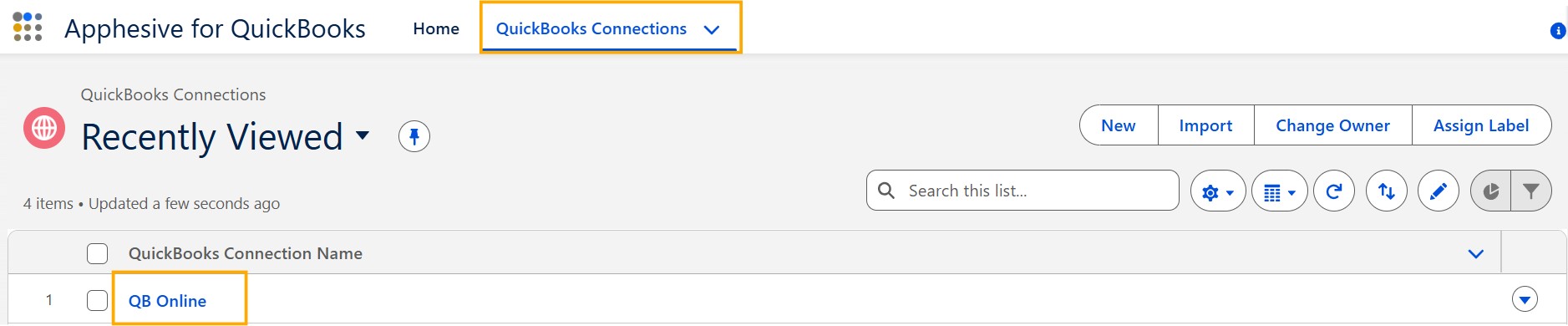
Open the QuickBooks Connections tab.
Open the QuickBooks Connection (i.e. QB Online) record.
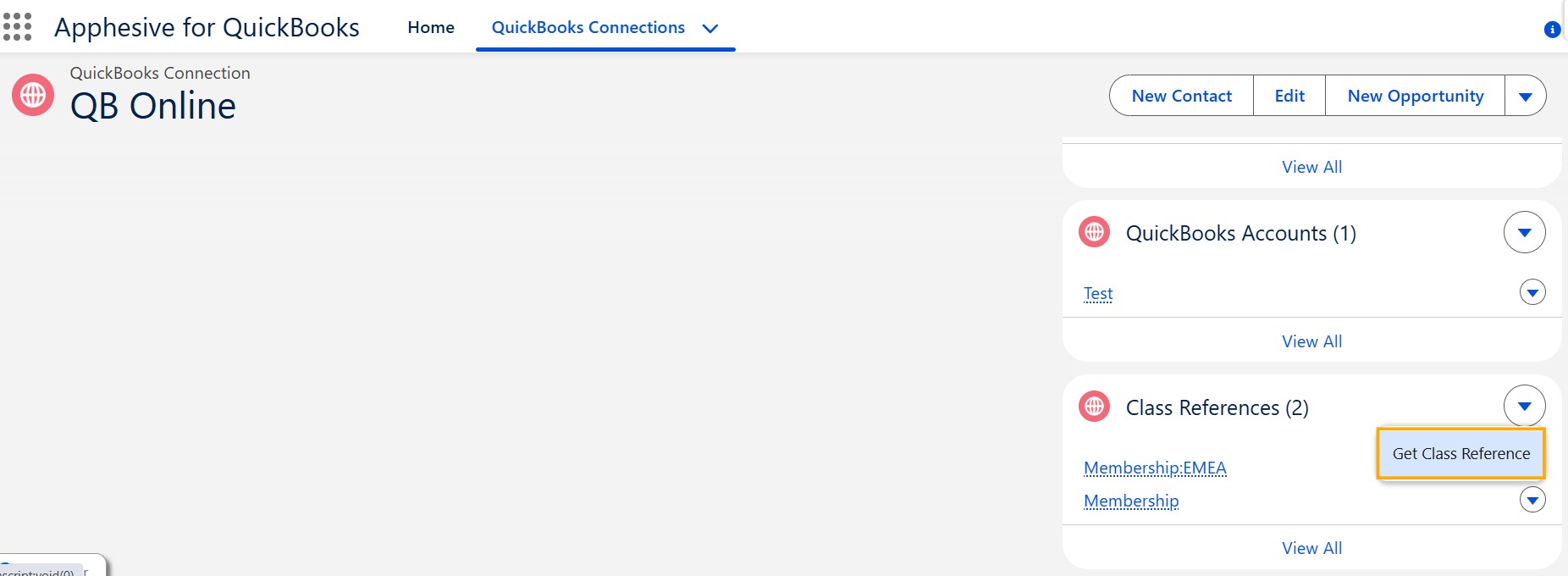
In the right panel, locate the Class References related list and click the Get Class Reference button.
Update Credit Memo Line Mapping
To update the Credit Memo Line mapping:
Go to the Apphesive for QuickBooks Lightning App.
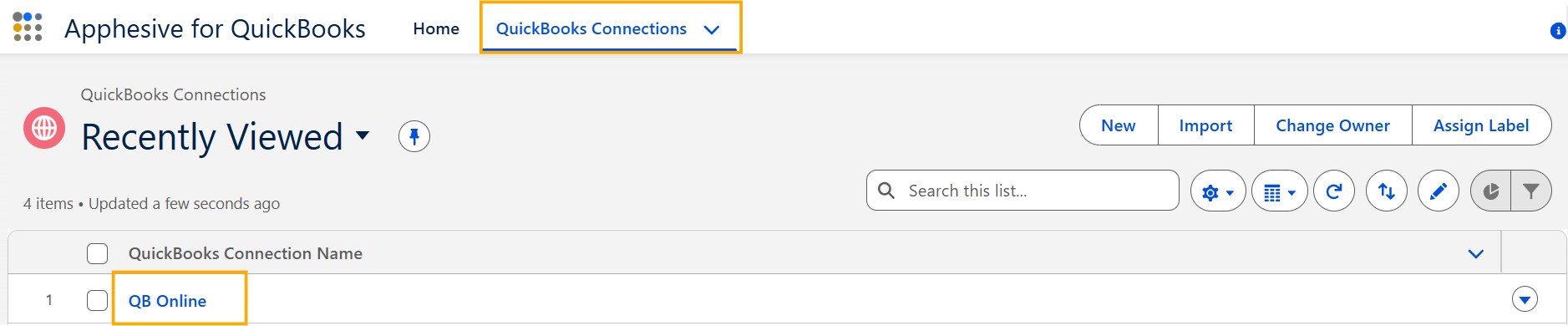
Open the QuickBooks Connections tab.
Open the QuickBooks Connection (i.e. QB Online) record.
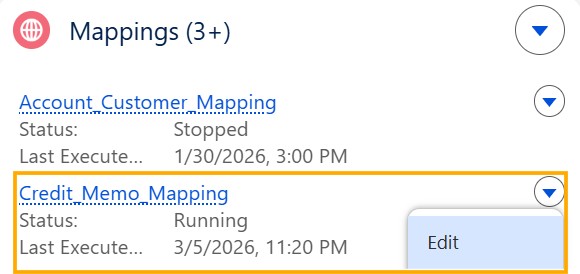
Edit the Credit Memo Mapping section.
Map the Class Reference ID field to ClassRef.
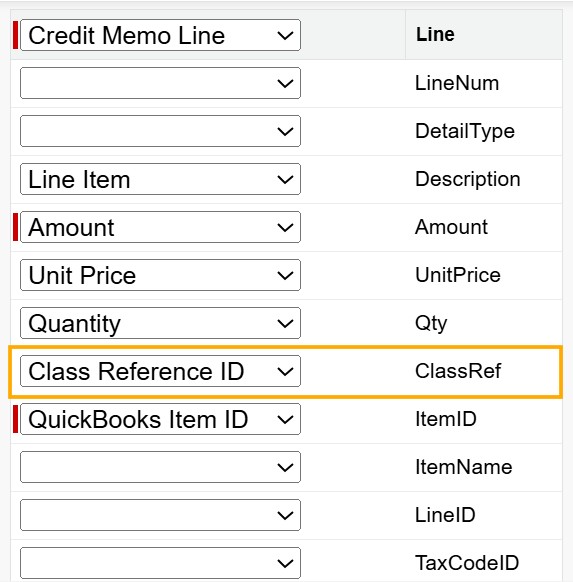
Credit Memo Line Configuration
Next, populate the source field (Class Reference lookup) on the Credit Memo Line record.
Note: The Apphesive extension package adds the lookup field for Class Reference along with its corresponding QuickBooks ID.
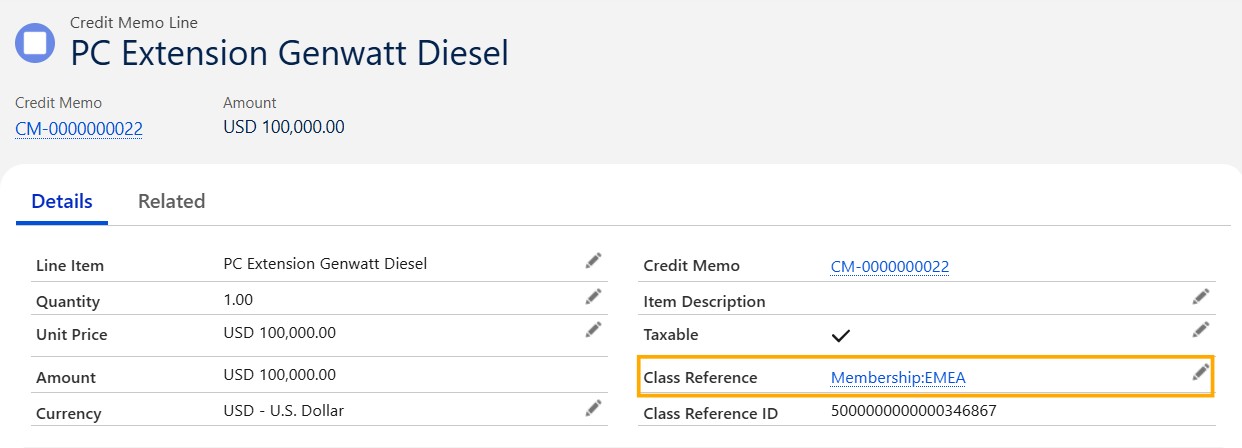
During QuickBooks Sync
When the sync runs:
The correct ClassRef is included for each line.
QuickBooks receives the properly mapped class data.
Records show up with the right classification on the other side.
