

Kulturra allows customers to securely save payment methods for future use. Once configured, saved payment profiles can be selected during checkout, making future payments faster and more convenient.
This guide explains how to configure the required mappings, save a payment profile, and verify that it has been stored successfully.
Important
Before the Save for future payment option is displayed, the required Connect Boards columns and application settings must be configured correctly.
STEPS:
To enable the Save for future payment option, you'll need to configure the following mappings in the Kulturra: Settings board.
The Contact ID must reference the Connect Boards column in the board where the payment form is used.
To configure the Contact ID:
Open the board where Kulturra is installed.
Locate the Connect Boards column that links to your Contacts board.
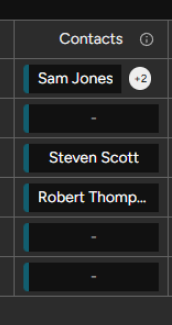
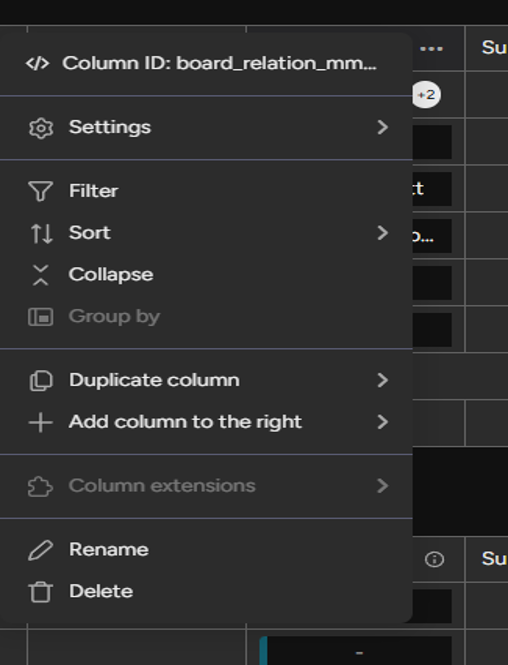
Copy the Column ID.
Paste the Column ID into the Subitem settings under Contact ID column.
Create a new column in Kulturra: Payment Profiles board and it should be a connect board column. Connect it to the board where the contacts are located.
Copy the id of column and paste it in the sub item settings under Payment Method Connection ID for Payment Method board

(Optional) Configure Contact Logging for Transactions
If you'd like transaction records to also display the related contact, you can configure an additional mapping.
Open the Kulturra: Transactions board.
Create a new column.
Connect it to your Contacts board.
Copy the Column ID.
Paste the Column ID into the Payment Method Connection ID for Transactions Board field.

The Save for future payments checkbox will now appear. Click this checkbox if you need to add a payment profile.
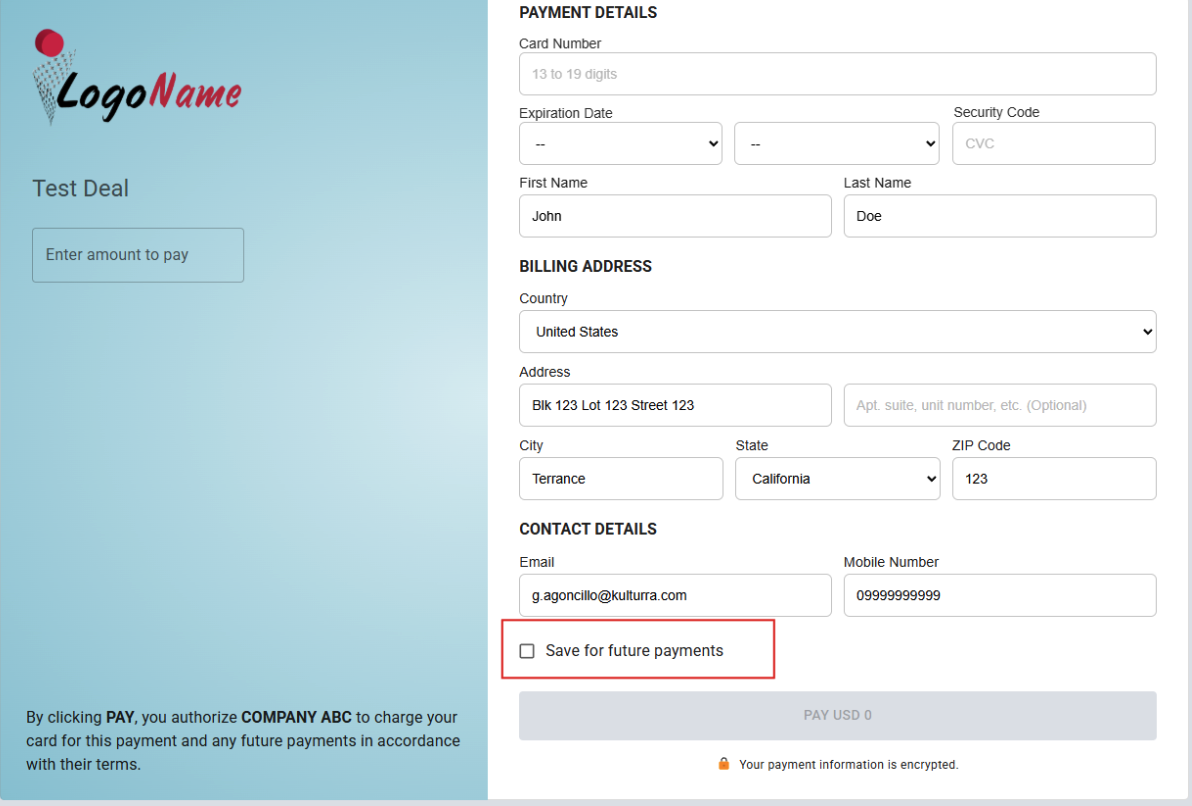
After payment check if the payment profile is added successfully at Kulturra: Payment Profiles board.
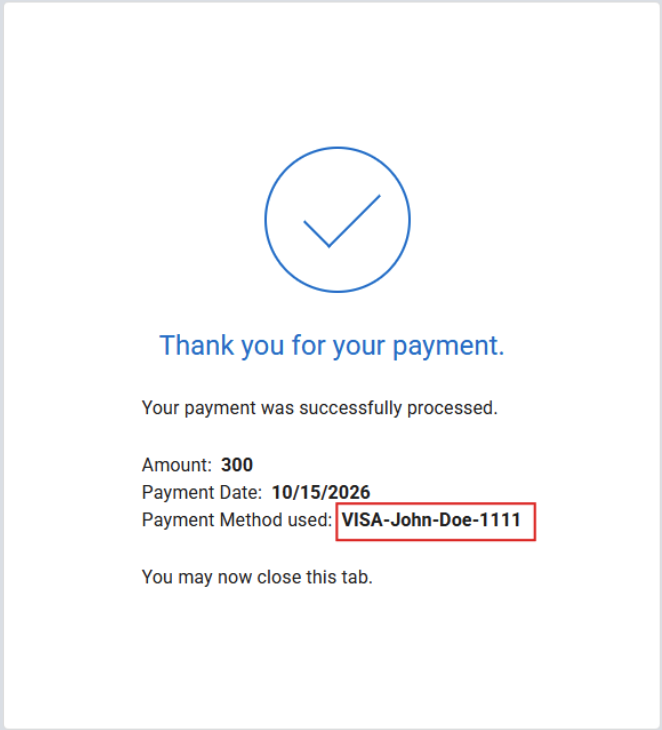
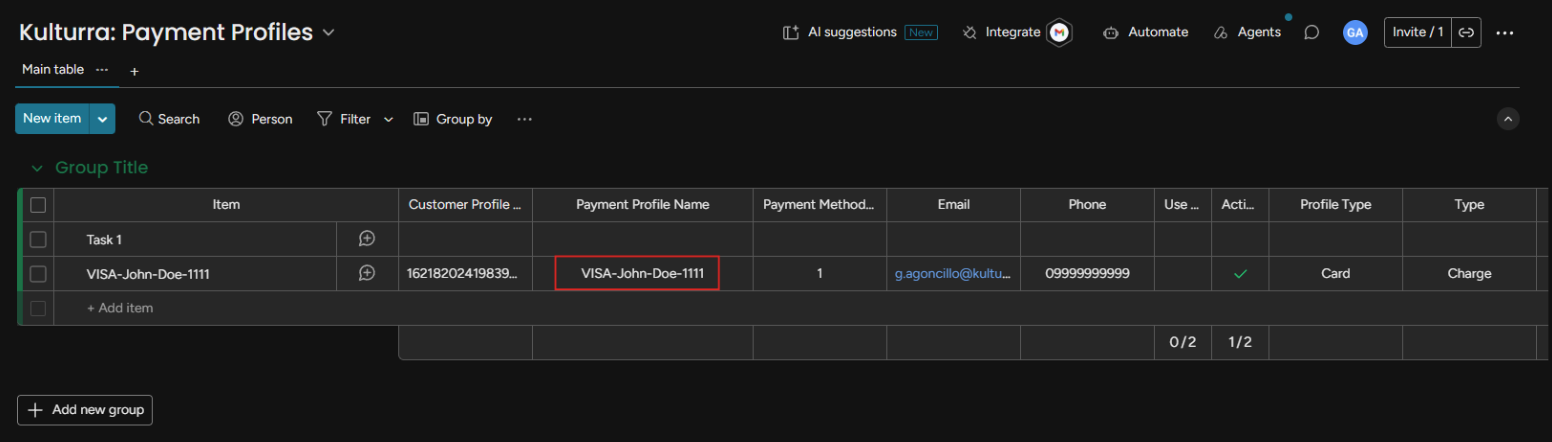
Check again to the app where the contact is set if the payment profile is already visible. Sample screenshot below:
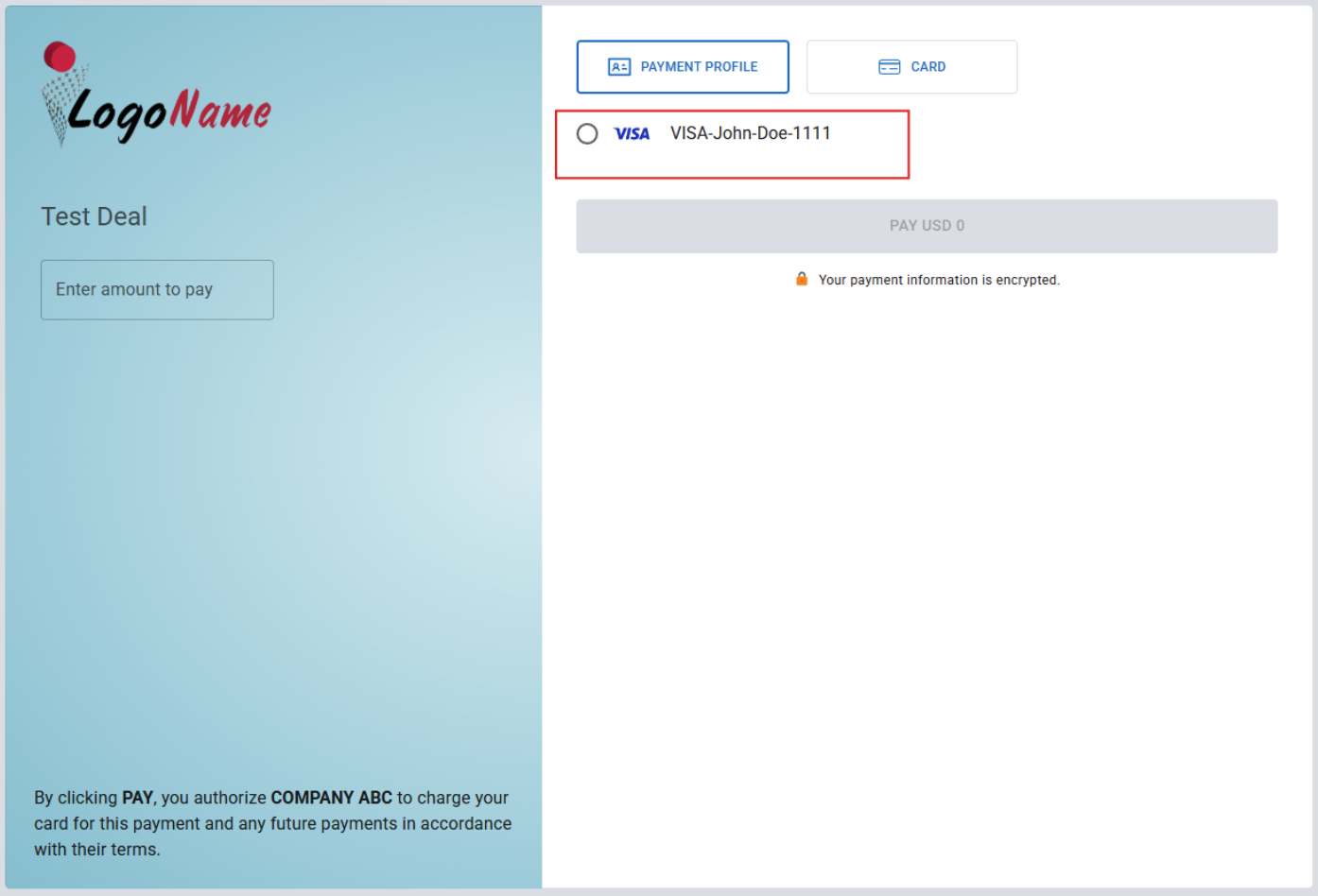
With this, the payer can now pay using the payment profile saved in the Kulturra: Payment Profiles board.