After installing Kulturra, you'll need to complete the initial application setup before you can begin processing payments.
This guide walks you through configuring your payment gateway, mapping the required monday.com boards and columns, and verifying your application settings.
Important
Several Connect Boards columns must be created manually as part of the setup. These columns allow the application to associate records between your boards, such as transactions, contacts, and payment methods.
To begin the setup:
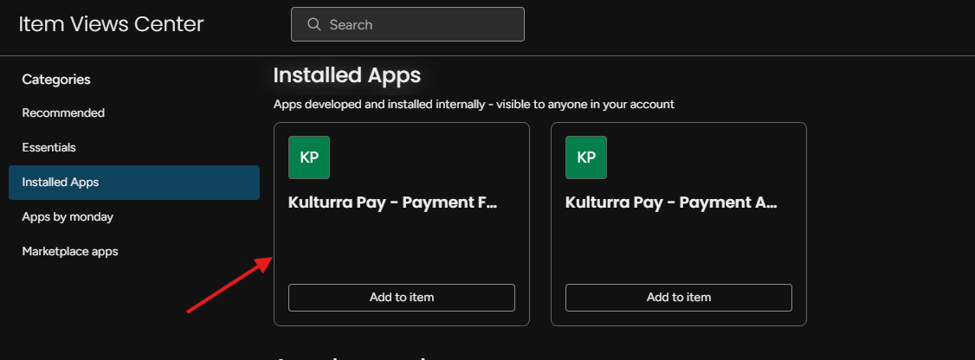
Open the Application: Open any item within the board where you plan to use the application. Select the Kulturra – Payment Form Item view from Installed Apps
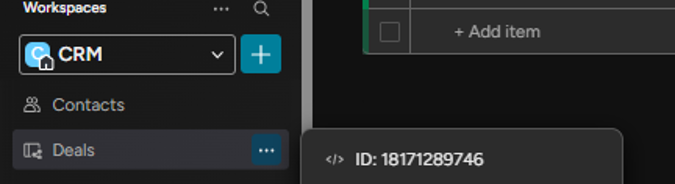
Enter Your Workspace ID: When opening the application for the first time, you'll be prompted to enter your Workspace. Copy your Workspace ID anb paste it into the Workspace ID field then click Submit.

Tip: You can locate your Workspace ID by enabling Developer Mode in monday.com and clicking the three-dot (•••) menu beside the Workspace name.
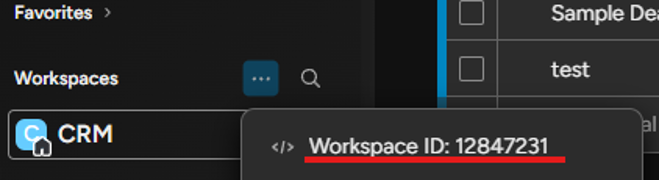
Alternatively, you can retrieve the Workspace ID from the Workspace URL in your browser.
Configure Your Payment Gateway: After submitting the Workspace ID, you'll be redirected to the Payment Gateway Settings page. Enter the credentials for the payment gateway you intend to use. The application uses the CardConnect endpoint by default. If you're using another supported payment gateway, replace the endpoint with the appropriate URL provided by your payment processor. For CardConnect testing, please contact us to request test credentials.
Important:
Complete all payment gateway settings before exiting the application. Leaving the setup incomplete may prevent the application from creating the required configuration for your boards and items.
After saving the settings, you may see an error message.
This is expected during the initial setup because the application has not yet been configured with the required board and column mappings.
Configure the Settings Board: Navigate to the Kulturra: Settings board and expand the subitem for the configuration you created.
Open the Kulturra: Transactions board.
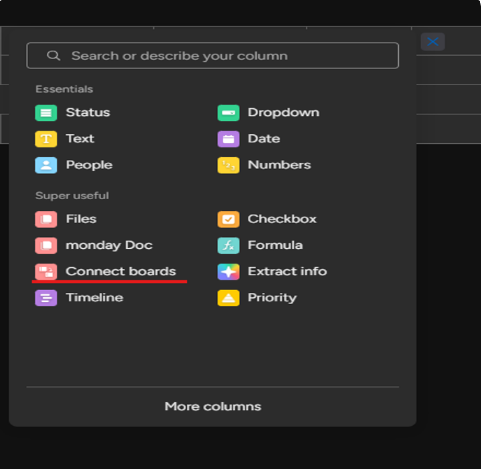
Click Add Column.
Select Connect Boards.
Select the board that you’ll connect with. The value should be the board where the Board ID that you entered in the “Board ID” subitem column is located.
Open the Kulturra: Transactions board.
Click Add column and select Connect Boards.
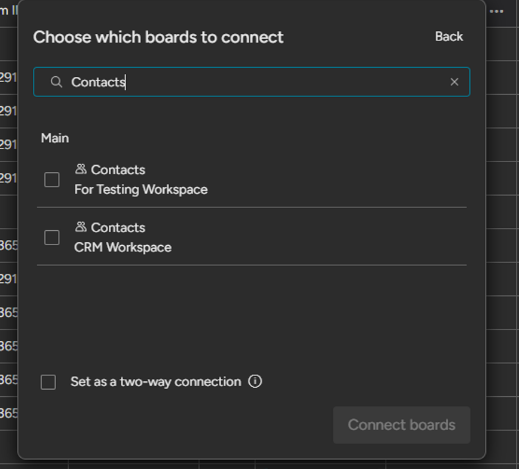
Select the board that you’ll connect with. The value should be the board where the contacts are located as it will be a connected board to contact items and it should be in the same workspace that the user is working with and using Kulturra.
This section contains all of the mappings used by the application.
a. Board ID (Required): The ID of the Board you are currently using for mapping of settings
b. Amount ID: The column ID where the amount of an item to be paid is located for mapping. The type of column that will be used should be a number.
c. Paid Amount Field ID: The column ID to show all the total amount paid in the board you’re using. The type of column that will be used should be a number.
d. Payment Lookup Field ID: The column ID in “Kulturra: Transactions” board where it connects to an item where the payment is made in the board where the app is used.
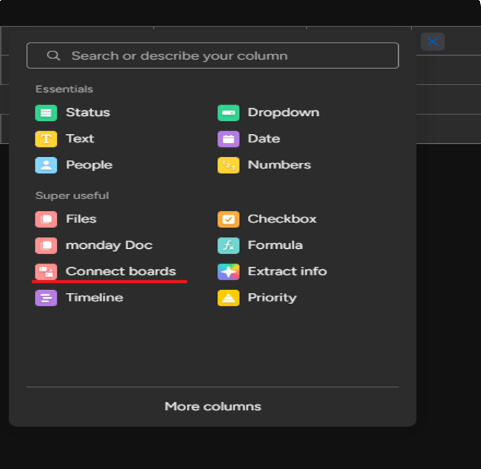
NOTE: Adding a column within Kulturra: Transactions that will be used for Payment Lookup Field ID is done manually. This field connects transactions back to the original board item. Because monday.com cannot create this relationship automatically, you'll need to manually create a Connect Boards column.
Below are the steps to follow:
e. Contact ID: The column ID to check if there are contacts related to the item. This column is used to check for payment methods. The type of column that will be used should be a board relation.
f. Payment Method Connection ID for Transaction board: The column ID for logging the Contacts to a connected board id that is manually created in Kulturra: Transactions board.
Below are the steps to follow:
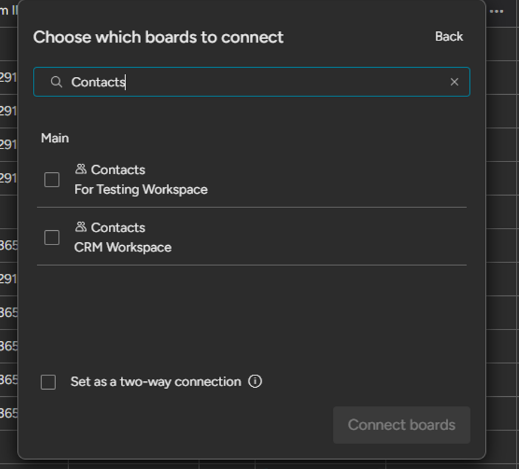
g. Payment Method Connection ID for Payment Method board: The column ID for logging the Contacts to a connected board id that is manually created in Kulturra: Payment Methods board. The value from this sub item will also be used as a condition if the “Save for future payment” checkbox will be displayed.
NOTE: Adding a column within Kulturra: Payment Methods that will be used for logging the contacts connect board values is done manually.
Below are the steps to follow:
Open the Kulturra: Payment Methods board.
Click Add column and select Connect Boards.
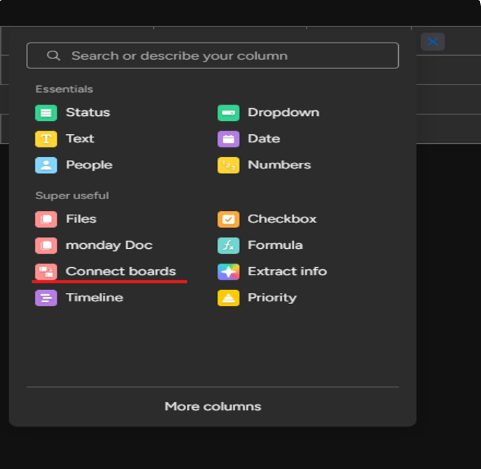
Select the board that you’ll connect with. The value should be the board where the contacts are located as it will be a connected board to contact items and it should be in the same workspace that the user is working with and using Kulturra.
h. Invoice ID: The column ID that will be used to send as an “order_id” field to CardConnect (or other payment gateway used). The type of column that will be used should be text.
i. Billing First Name ID: The column ID to be mapped in the application at payment form as default value of First Name field. The type of column that will be used should be text.
j. Billing Last Name ID: The column ID to be mapped in the application at payment form as default value of Last Name field. The type of column that will be used should be text.
k. Billing Address ID: The column ID to be mapped in the application at payment form as default value of Address Line 1 field. The type of column that will be used should be text.
l. Billing City ID: The column ID to be mapped in the application at payment form as default value of City field. The type of column that will be used should be text.
m. Billing Zip: The column ID to be mapped in the application at payment form as default value of Zip field. The type of column that will be used should be text.
n. Billing Country ID: The column ID to be mapped in the application at payment form as default value of Country field. The value should be an “ISO” code. Check the value here and search for the “iso2” field of the country you want to use as default value. The type of column that will be used should be text.
o. Billing State ID: The column ID to be mapped in the application at payment form as default value of State field. The value should be an “ISO” code that is based on the country. Check the value here, use the value from the country column by “country_code” and then search for the “iso2” field of the country you want to use as default value. The type of column that will be used should be text.
p. Email ID: The column ID to be mapped in the application at payment form as default value of Email field. The type of column that will be used should be text.
q. Phone ID: The column ID to be mapped in the application at payment form as default value of Phone field. The type of column that will be used should be text.
NOTE: For items h to q , Map the id values base on the board id that is set as a value in the Board ID subitem column.

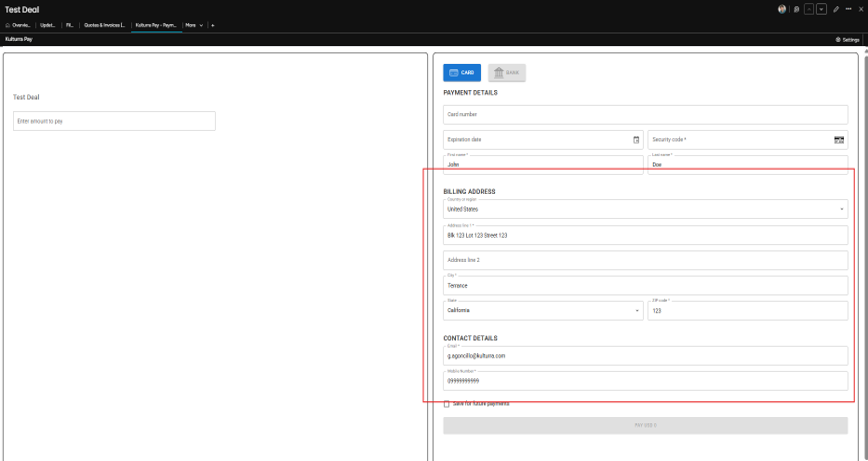
Sample columns in the board to be used:

Example when mapped successfully:
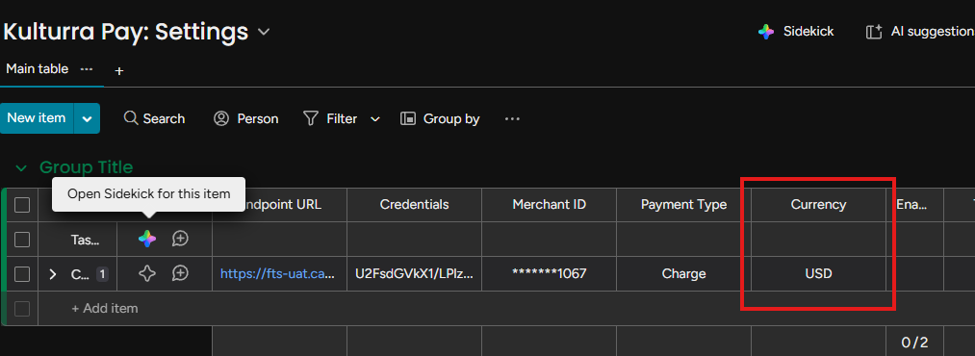
Configure the Currency: Open the Kulturra: Settings board and verify that the configured currency matches the currency supported by your payment gateway.
The default currency is USD. If your payment processor supports a different currency, update the setting before processing payments.
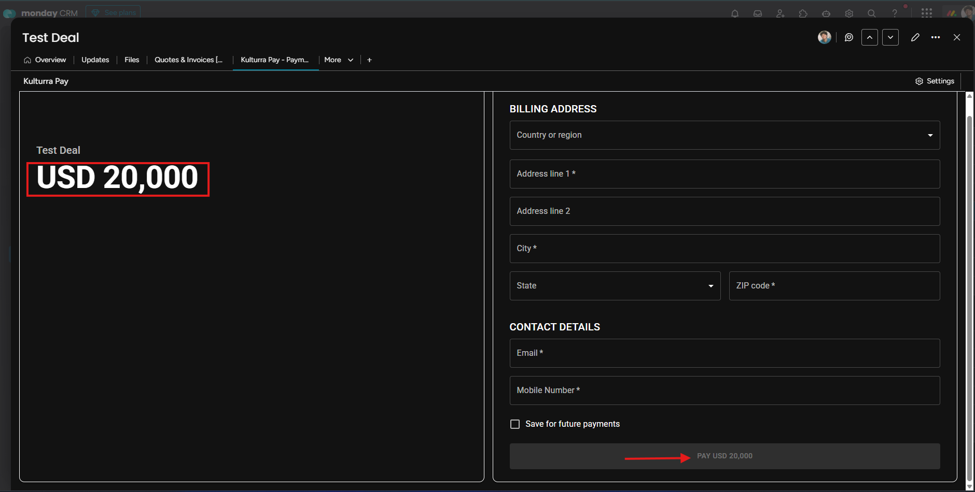
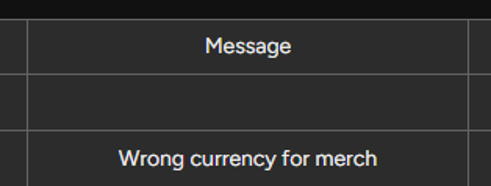
Note: If a payment fails because of an unsupported currency, the error message is recorded in the Message column of the Kulturra: Transactions board under Message Column.