

Once you've completed the application setup and configured the required board and column mappings, you're ready to begin processing payments through Kulturra.
This guide walks you through submitting a payment and verifying that the transaction has been recorded successfully.
Important
The application requires the necessary Connect Boards columns to be configured correctly. If these mappings are incomplete, some features may not function as expected.
Verify Your Configuration
Before processing a payment, confirm that the Board ID and all required column mappings have been configured in the Kulturra: Settings board.
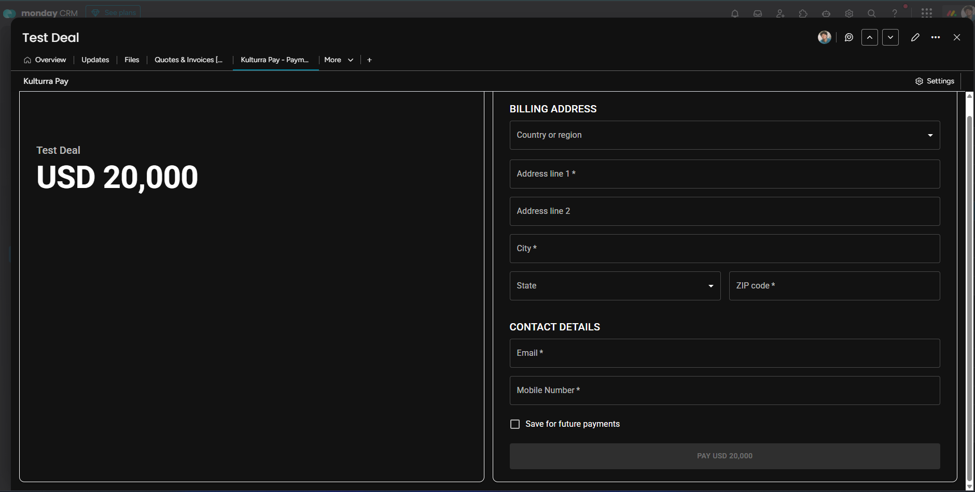
When the Board ID is mapped successfully, the payment form will load with the configured information from your board.
Tip
For the best experience, ensure all required fields have been mapped before accepting payments.
Process a Payment
To submit a payment:
Open an item in the board where Kulturra is installed.
Review the payment information displayed in the form.
Complete any remaining payment details, if required.
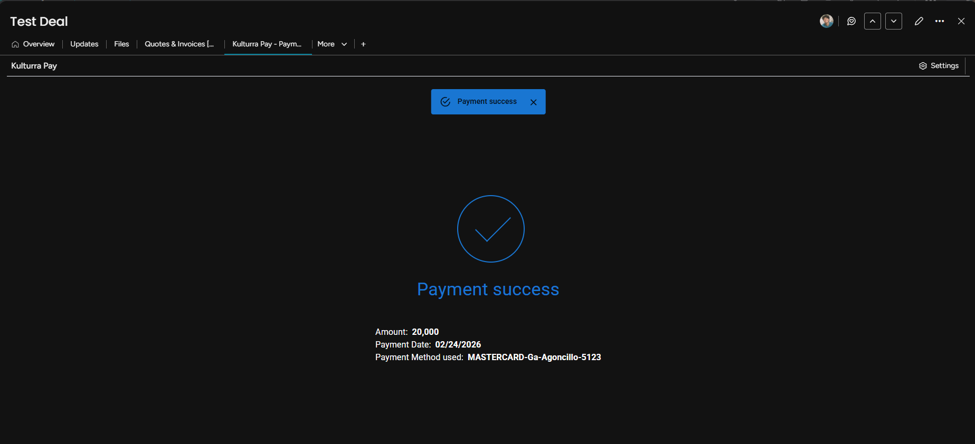
Click the Pay button to submit the payment.
Verify the Payment
After the payment is processed successfully:
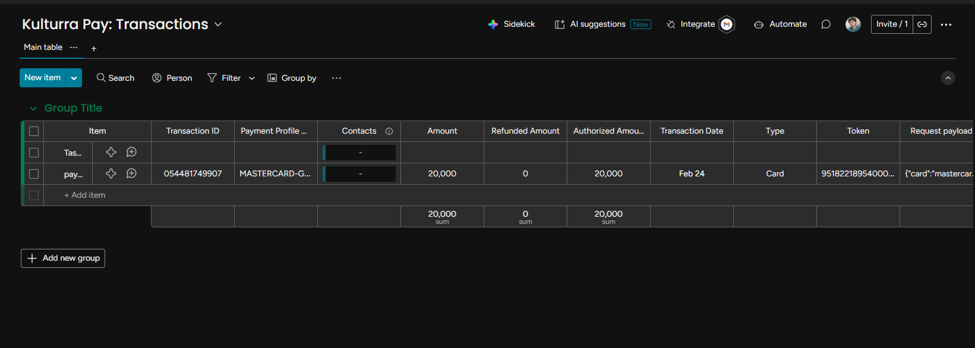
Open the Kulturra: Transactions board.
Confirm that a new transaction has been created for the payment.
If the Amount Field Is Not Displayed Correctly
If the Amount ID has not been mapped in the Kulturra: Settings board, the application cannot automatically determine the payment amount.
In this case, the payment form displays a manual Amount field, allowing the user to enter the amount to be charged.
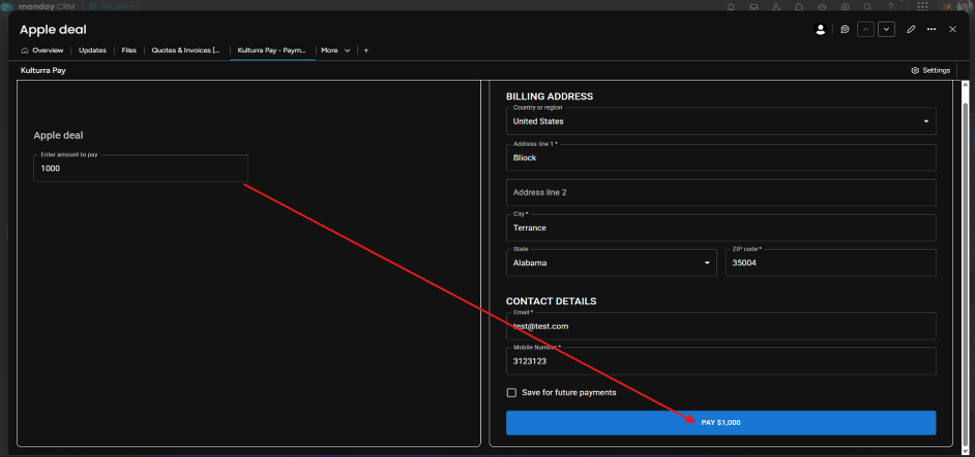
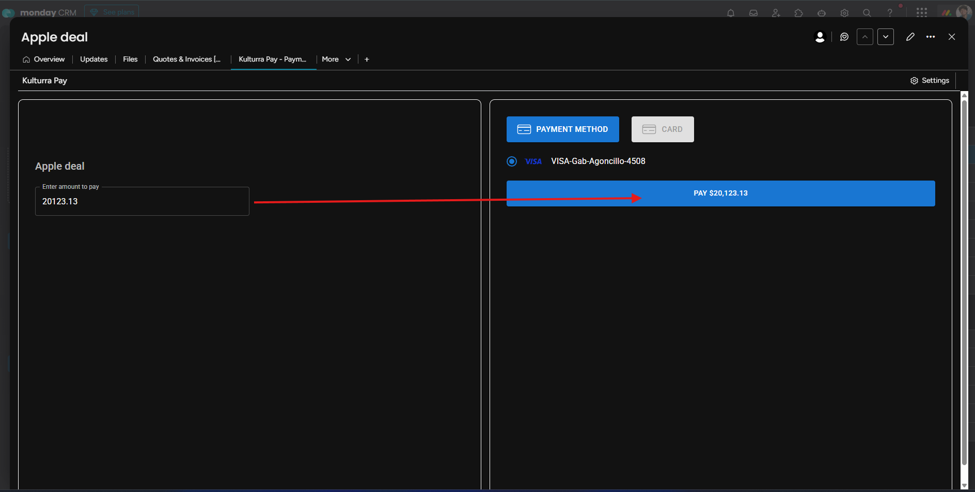
To have the amount populated automatically, update the Amount ID mapping in your subitem settings.
Troubleshooting
If the payment form does not load as expected:
Verify that the Board ID has been configured correctly.
Confirm that all required column mappings have been completed.
Ensure that all required Connect Boards columns are connected to the correct boards.
Review the Kulturra: Transactions board for any error messages returned by the payment gateway.