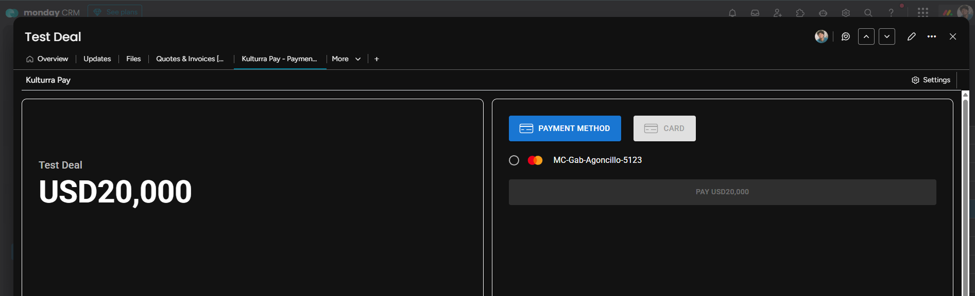
Kulturra allows customers to securely save payment methods for future use. Once configured, saved payment methods can be selected during checkout, making future payments faster and more convenient.
This guide explains how to configure the required mappings, save a payment method, and verify that it has been stored successfully.
Important
Before the Save for future payment option is displayed, the required Connect Boards columns and application settings must be configured correctly.
Configure the Required Mappings
To enable the Save for future payment option, you'll need to configure the following mappings in the Kulturra: Settings board.
Configure the Contact ID
The Contact ID must reference the Connect Boards column in the board where the payment form is used.
To configure the Contact ID:
Open the board where Kulturra is installed.
Locate the Connect Boards column that links to your Contacts board.
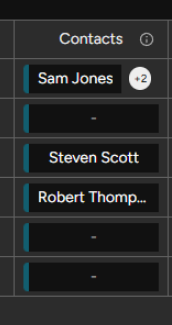
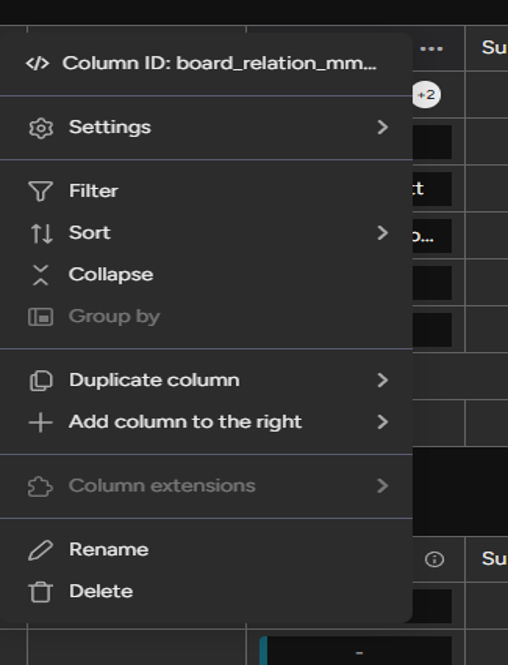
Copy the Column ID.
Paste the Column ID into the Subitem settings under Contact ID field in the Kulturra: Settings board.
Configure the Payment Methods Connection
Next, configure the connection to the Kulturra: Payment Methods board.
Open the Kulturra: Payment Methods board.
Create a new Connect Boards column.
Connect the column to the board that contains your Contacts.
Copy the Column ID.
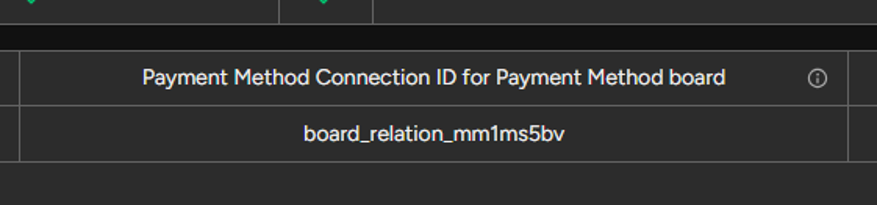
Paste the Column ID into the Payment Method Connection ID for Payment Methods Board field.
(Optional) Configure Contact Logging for Transactions
If you'd like transaction records to also display the related contact, you can configure an additional mapping.
Open the Kulturra: Transactions board.
Create a Connect Boards column.
Connect it to your Contacts board.
Copy the Column ID.
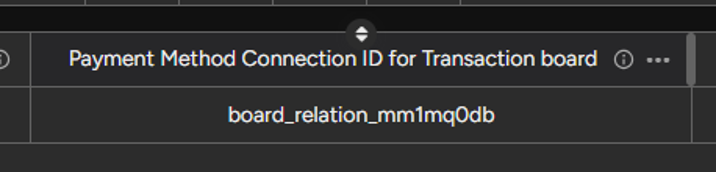
Paste the Column ID into the Payment Method Connection ID for Transactions Board field.
Save a Payment Method
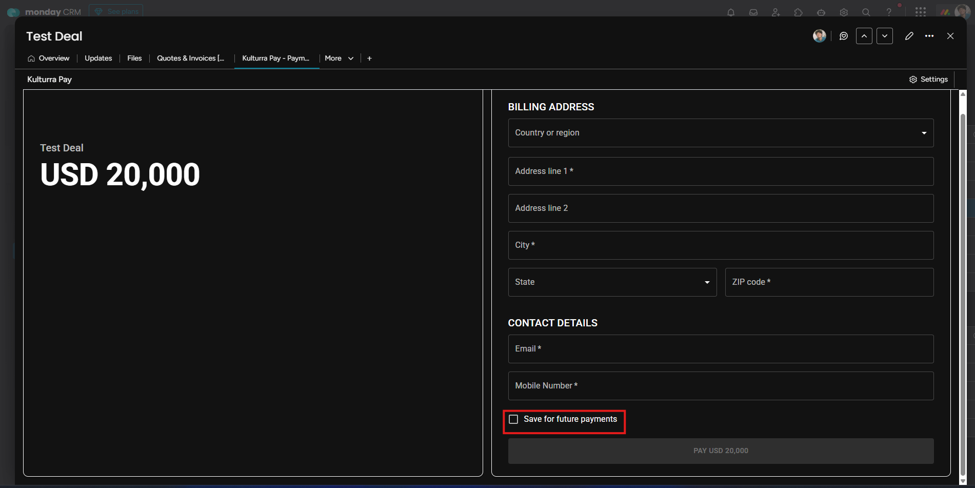
Once the required mappings have been completed, the Save for future payment checkbox will automatically appear on the payment form.
To save a payment method:
Open the payment form.
Complete the payment details.
Select the Save for future payment checkbox.
Submit the payment.
Verify the Saved Payment Method
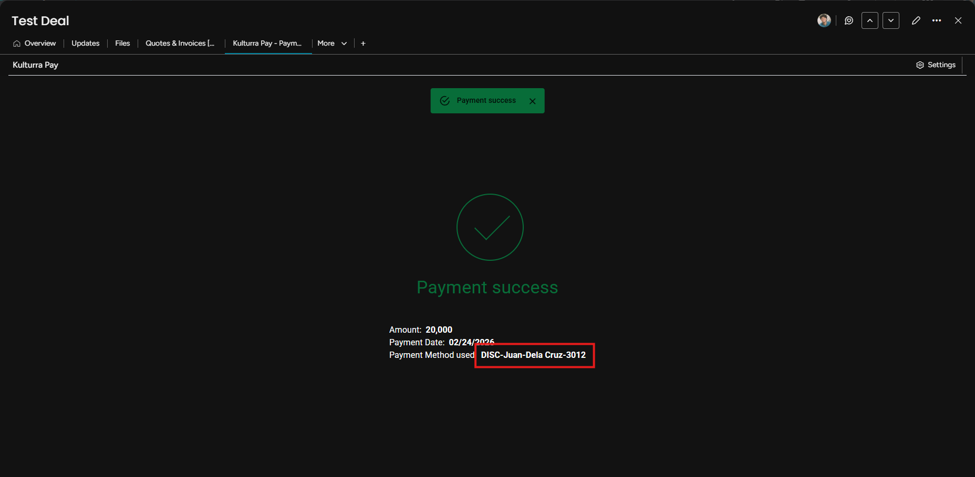
After the payment has been processed successfully:
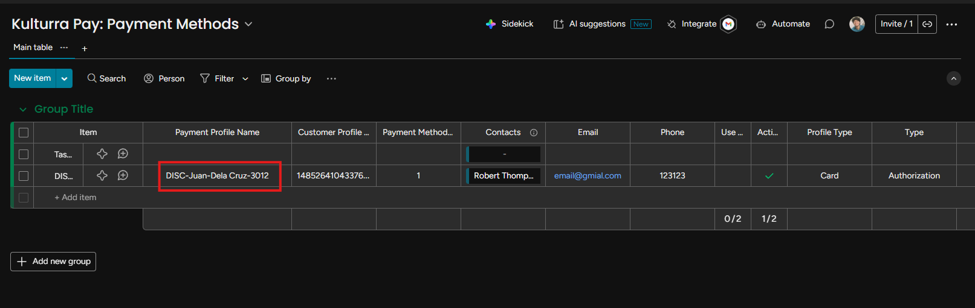
Open the Kulturra: Payment Methods board.
Confirm that a new payment method has been created for the contact.
Use a Saved Payment Method
Return to the payment form for the same contact.
If the payment method was saved successfully, it will now be available for selection when processing future payments.
This allows returning customers to complete payments without entering their payment information again.